Why Does Silence Removal Sound Choppy?
Choppy silence removal often means your threshold is too high or pauses are trimmed too short. Learn settings to tighten dead air without clipping speech.
Read article→MP3 editor online
Upload an MP3, trim sections on a timeline, clean up the recording, and export a new file — all from your browser.
MP3, WAV, M4A and most browser-supported audio/video files.
Everything you need to edit, clean, and export professional audio in one place.

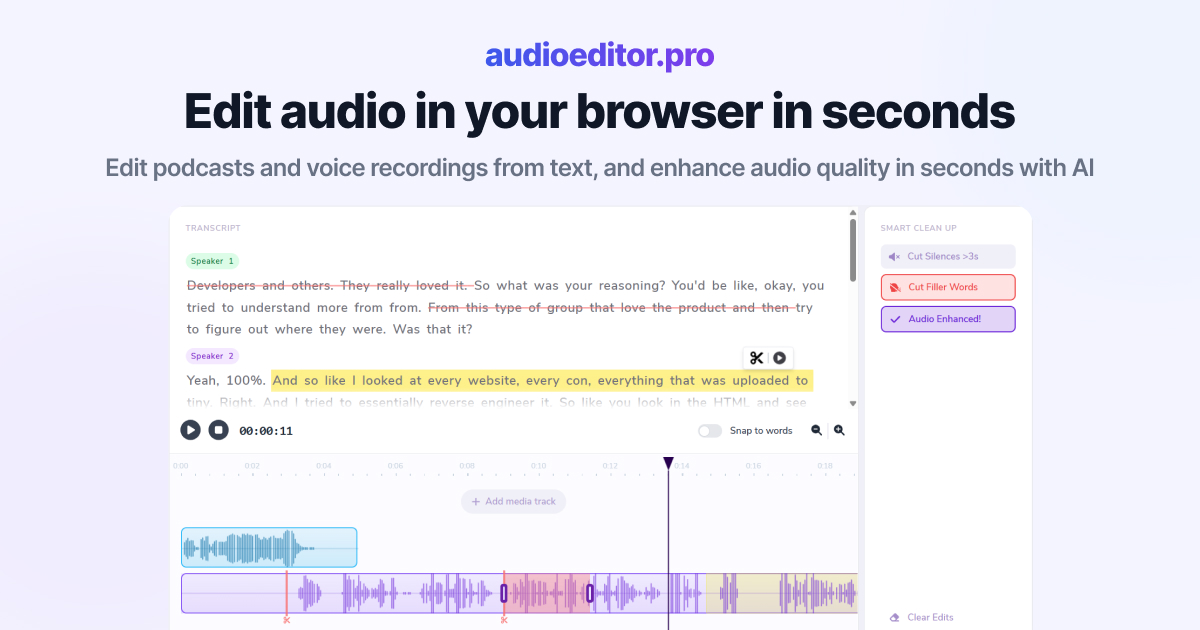
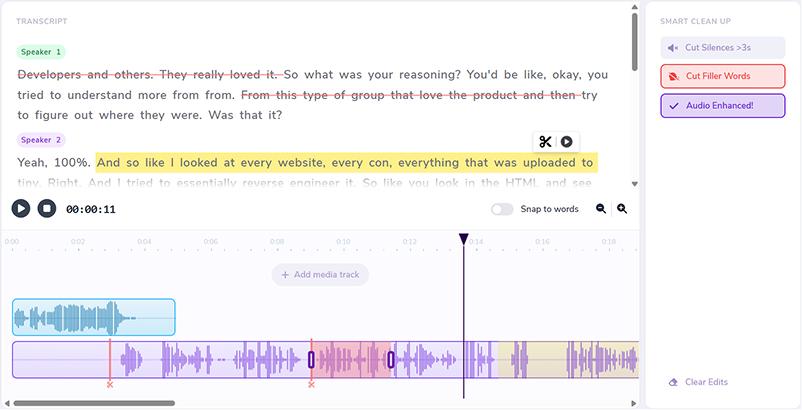
Cut, rearrange, and refine your audio by editing the transcript directly.
Improve clarity, reduce noise, and bring your voice forward with one-click enhancement.
Automatically detect and remove dead air so your episode stays tight and engaging.
Clean up ums, uhs, and verbal fillers without manually hunting through the waveform.
Layer music, intros, voiceovers, and additional audio sources on a shared timeline.
Trim with precision using waveforms, transport controls, and visual cut markers.
Whether you shorten a podcast clip, fix a voice memo, or prep audio for a video, the MP3 workflow stays simple in the browser.
Trim intros, outros, and dead air from episode files without opening desktop software.
Clean up spoken MP3 recordings with enhancement and smart cleanup tools.
Edit dialogue tracks exported as MP3 before dropping them into your edit.
Open the editor in a browser tab instead of hunting for a local MP3 tool.
Use the transcript for rough cuts and the timeline for fine-grained trimming.
Remove silences, filler words, and noisy sections from your MP3 without rebuilding the project.
Finish your MP3 in the same online workspace where you uploaded and edited it.
Drop an MP3 or other audio file into the online editor. The workspace prepares your media and starts transcription when speech is detected.
Select words in the transcript to cut sections, or trim directly on the waveform with transport controls and multi-track lanes.
Remove silences, strip filler words, apply enhancement, and layer extra tracks until the MP3 sounds right.
Download the result from the browser when your edit is ready. For precise start-and-end trimming, try our audio trimmer online on the same file.
Practical articles on transcript editing, cleanup workflows, and creator audio production.
Choppy silence removal often means your threshold is too high or pauses are trimmed too short. Learn settings to tighten dead air without clipping speech.
Read article→Heavy filler removal can sound robotic when pauses vanish and words land too close. Learn when to cut ums and when to leave speech human.
Read article→Remove ums and uhs automatically from podcast audio with transcription, bulk filler detection, and a quick review pass so cuts stay natural.
Read article→Yes. Upload your MP3 in the browser, edit on a timeline, and export when you are finished. No desktop install is required.
Trim sections, cut clips, remove silences, clean up filler words, enhance voice clarity, layer extra tracks, and export a new audio file.
You export from the editor when your mix is ready. For most creator workflows, the output is suitable for podcasts, voiceovers, and video audio.
Yes. When your MP3 contains speech, transcription enables text-based cuts so you can remove words or sections without hunting the waveform.
Yes. Upload episode-length MP3s, trim sections, run cleanup, and export a shorter or polished version.
MP3, WAV, M4A, and most browser-supported audio and video formats are supported for upload.
Related features: