Filler words
How to Remove Every Um and Uh Automatically
Remove ums and uhs automatically from podcast audio with transcription, bulk filler detection, and a quick review pass so cuts stay natural.
TL;DR
- Transcribe first, then run filler detection on the linked transcript.
- Do structural edits before bulk um/uh removal.
- Review flags before remove all; keep meaning-carrying "like" and "you know."
- audioeditor.pro detects fillers in context and supports browser export after review.
Hunting "um" in a waveform is slow. You zoom, play, cut, and repeat for an hour-long interview. Automatic filler removal flips the workflow: the software finds hesitations in the transcript, you approve the list, and the matching audio disappears in one pass.
This guide is for podcasters and creators who want most fillers gone fast without hand-scrubbing every syllable. You still review the result. Automation finds; you decide what ships.
What automatic filler removal actually does
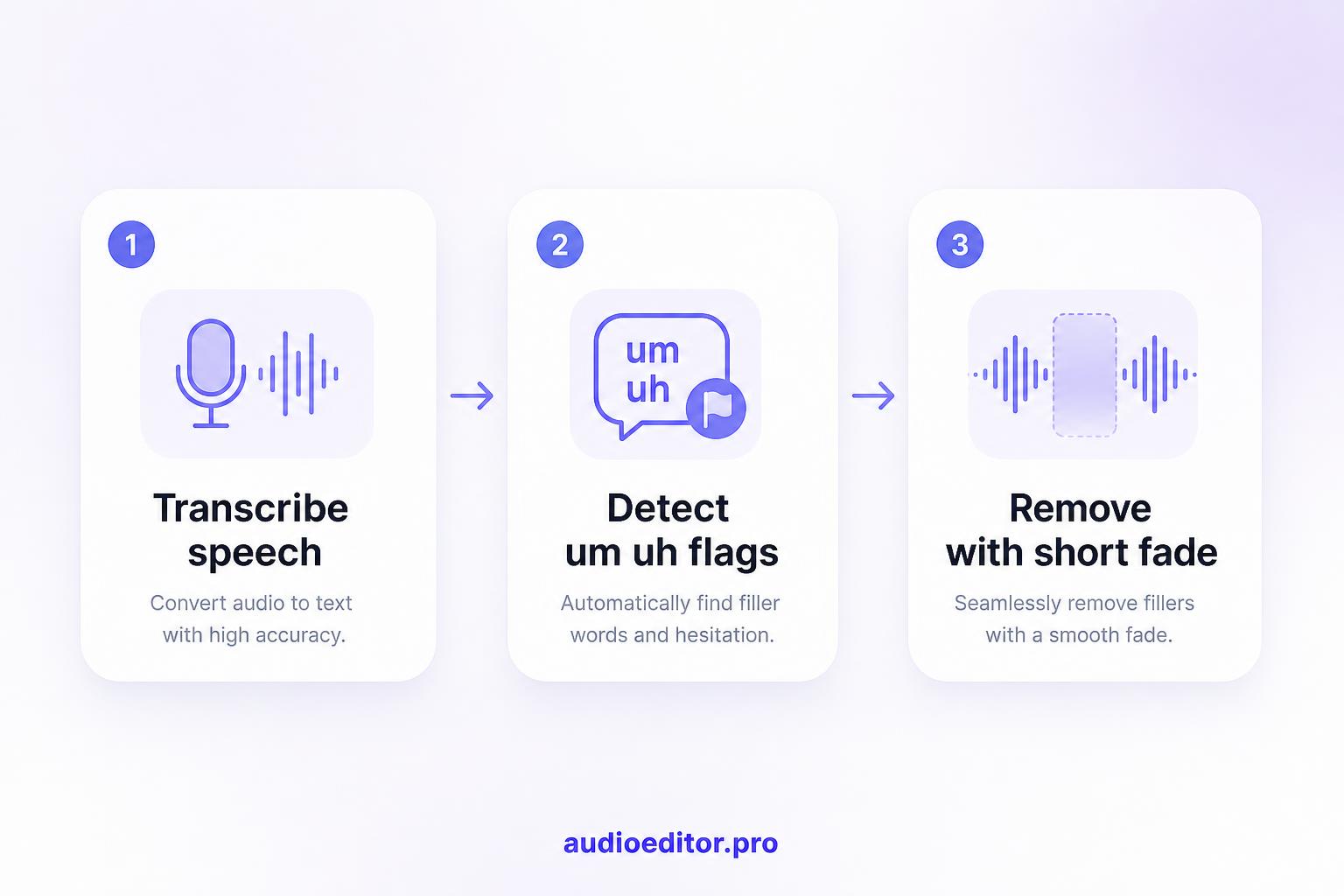
Tools built for spoken audio run speech-to-text first. The transcript gives each word a time range. A filler detector then flags common hesitation tokens:
- um, uh, ah
- like, you know, so, actually (when used as crutches, not meaning)
- Sometimes repeated and or but at sentence starts
The editor highlights those words in the transcript. When you delete or bulk-remove them, the tool cuts the linked audio segment, often with a short fade so the join does not click.
Detection is not perfect. Clear speech with a clean recording works best. Heavy crosstalk, music under voice, or a noisy room can produce misses and false positives. Plan on a five-minute review after bulk removal.
Run filler removal last, not first
Automatic um/uh cleanup belongs at the end of your edit, after structural cuts.
If you strip fillers first and then delete a whole tangent, you wasted time polishing audio that left the episode. If you shorten the file by twenty minutes first, the filler pass runs on less material and finishes faster.
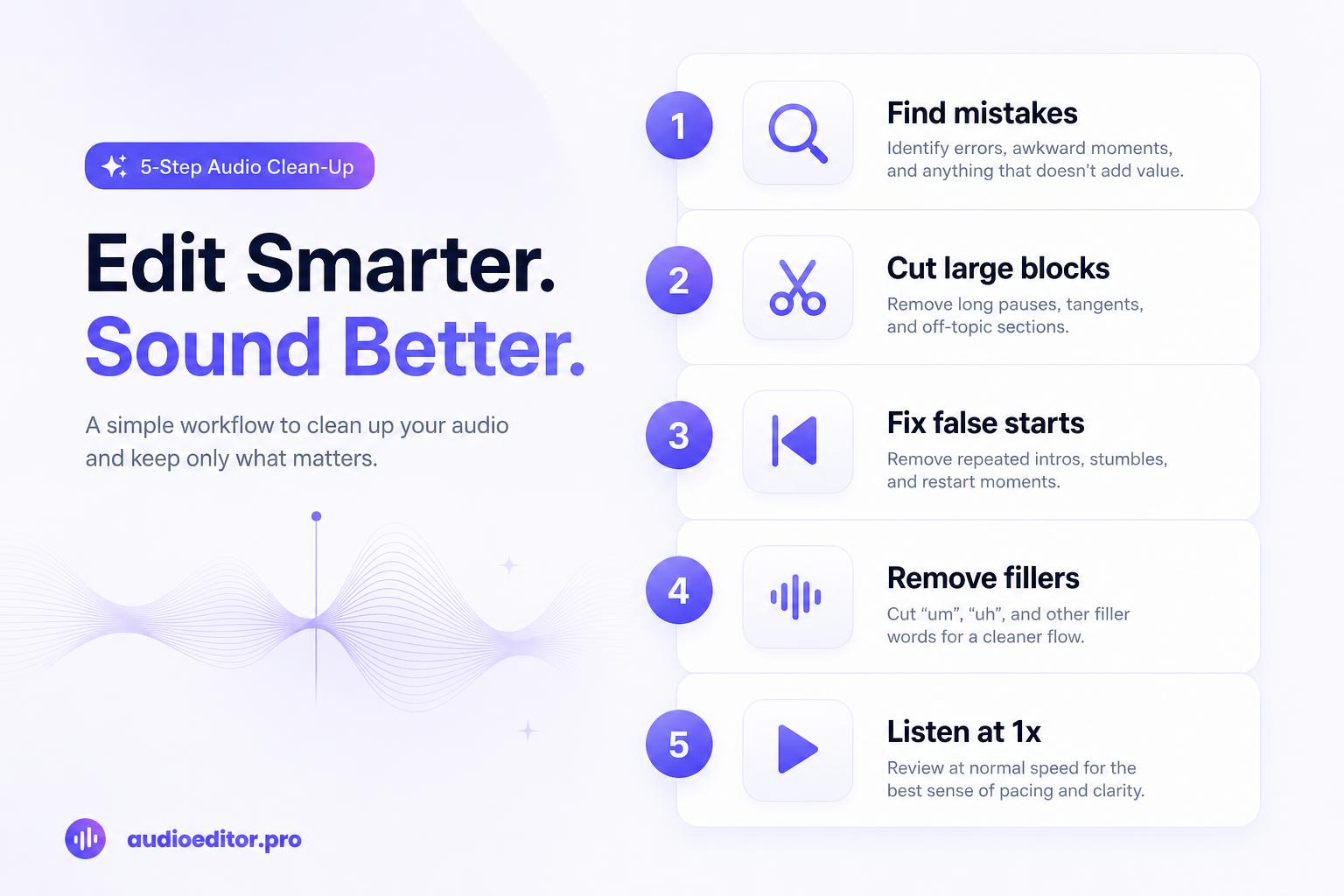
Order that works well:
- Map mistakes and big cuts (find pass)
- Remove large blocks (cut down the interview)
- Fix obvious false starts by hand
- Then run automatic filler removal
- Full listen at 1x before export
Step-by-step: automatic um and uh removal
1. Upload and transcribe
Import your recording (MP3, WAV, M4A, or similar) into audioeditor.pro. Wait for transcription to finish. Skim the first minute to confirm names and technical terms are roughly right. Bad transcript alignment makes filler detection miss or hit the wrong syllable.
2. Open filler word detection
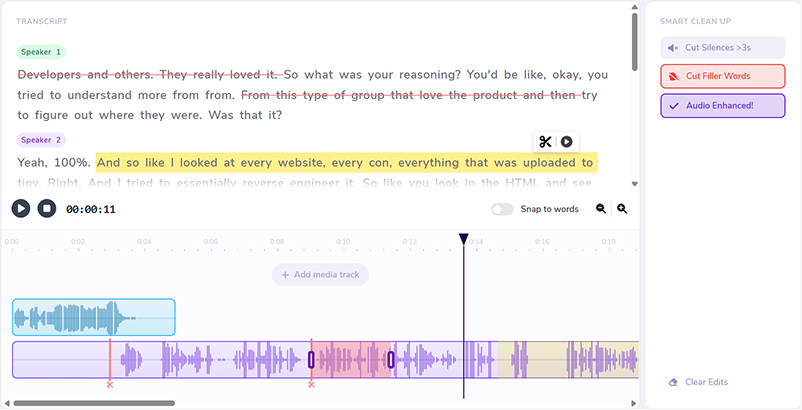
In a transcript-first editor, look for filler words, disfluencies, or a similar cleanup panel. The tool scans the text and marks candidates, often with color in the transcript or flags on the timeline. The filler panel on audioeditor.pro shows each um and uh in the sentence around it before anything is cut.
3. Review the flagged list
Before you click remove all, scan for:
| Flag type | What to do |
|---|---|
| Clear um/uh between phrases | Safe to remove |
| "Like" that means "similar to" | Uncheck; keep it |
| "You know" the listener should hear | Keep one per section if it sounds natural |
| Filler glued to another word | Skip or edit manually; harsh cuts click |
Many tools let you play each hit in isolation. Use that on any borderline flag.
4. Bulk remove, then spot-check dense sections
Apply bulk removal to approved flags. Afterward, play through dense dialogue where multiple fillers sat close together. Removing five ums in ten seconds can sound rushed even when each cut is clean.
If a passage feels tight, undo one or two removals or add back a short pause from the original take.
5. Listen for clicks and jump cuts
Automatic cuts can cause clicks and pops or audio jump cuts when two words land too close. After bulk removal:
- Play joins at 1x on headphones
- Lengthen a crossfade on any tick you hear
- Leave a 80–150 ms breath tail where speech sounds welded
Some editors skip fillers that would create a harsh cut. Turn that option on if it is available.
Settings that change how aggressive the pass is
If your tool offers sensitivity controls, start moderate:
- High sensitivity — catches more ums but risks clipping into real words
- Low sensitivity — leaves more fillers but safer joins
- Custom word list — add "kind of", "sort of", or show-specific crutches your hosts use
For a first episode, run moderate, review, export a draft, and note which flags you kept. Use that list to tune the next episode.
Manual backup for what automation misses
Automatic passes rarely get 100% of fillers in one click. Close the gap with a quick manual sweep:
- Search the transcript for
um,uh,erm - Scan the timeline for thin red/filler markers your tool may have skipped
- At 1.25x playback, stop only when a hesitation still jumps out
Budget ten to fifteen minutes after bulk removal on a 45-minute episode. That is still far less than waveform-only editing.
When not to remove every um and uh
The title goal is a clean deliverable, not a speech-free robot. Keep a filler when:
- It carries emphasis ("like, wow")
- Removing it changes meaning
- The speaker's natural rhythm sounds wrong without it
Automatic removal handles the obvious clutter. Your ear handles taste. The next question many editors ask is whether heavy cleanup sounds robotic; that is worth a separate listen pass after export.
Quick checklist
- Finish structural edits before filler cleanup.
- Transcribe and confirm the script is usable.
- Run filler detection; review flags, not blind bulk delete.
- Bulk-remove approved ums and uhs.
- Play dense sections; restore a filler or pause if it sounds rushed.
- Check joins for clicks and jump cuts; add micro-fades if needed.
- Search the transcript for stragglers; manual cleanup last.
- Full episode listen at 1x before publish.
Automatic filler removal turns a multi-hour chore into a short review session. Upload, transcribe, approve the list, and export when the speech still sounds human.
FAQ
Does automatic removal get every um and uh?
Rarely 100% in one pass. Budget ten to fifteen minutes after bulk removal to search the transcript and catch stragglers.
When should I run filler removal in my edit?
Last, after structural cuts and false-start fixes. Polishing audio you will delete wastes time.
What fillers do tools usually detect?
Um, uh, ah, and often crutch uses of like, you know, so, and actually. Custom word lists help with host-specific habits.
Should I use remove all without reviewing?
No. Uncheck flags where "like" means similar to, where emphasis matters, or where the cut would clip into another word.
What if dense sections sound rushed after bulk removal?
Undo one or two removals in that passage or add back a short pause from the raw take.