Why Does Silence Removal Sound Choppy?
Choppy silence removal often means your threshold is too high or pauses are trimmed too short. Learn settings to tighten dead air without clipping speech.
Read article→AI voice editor
Upload voice audio, transcribe automatically, enhance clarity, remove fillers and silences, and export polished speech from one browser workspace.
MP3, WAV, M4A and most browser-supported audio and video files.
Everything you need to turn spoken recordings into publish-ready audio from one browser workspace.

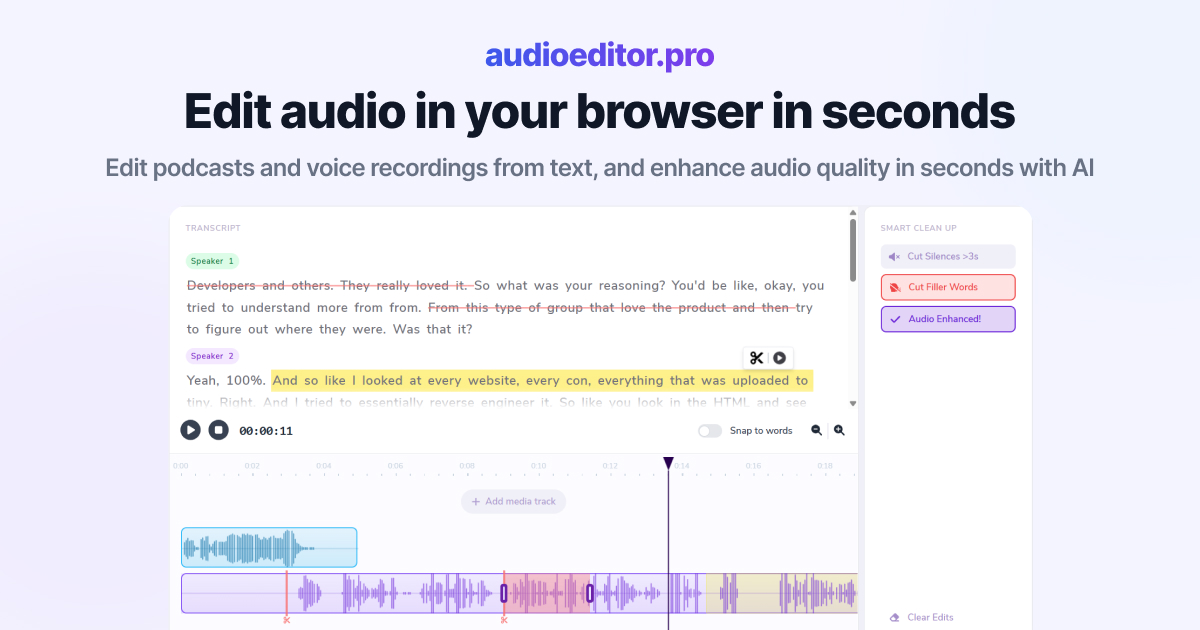
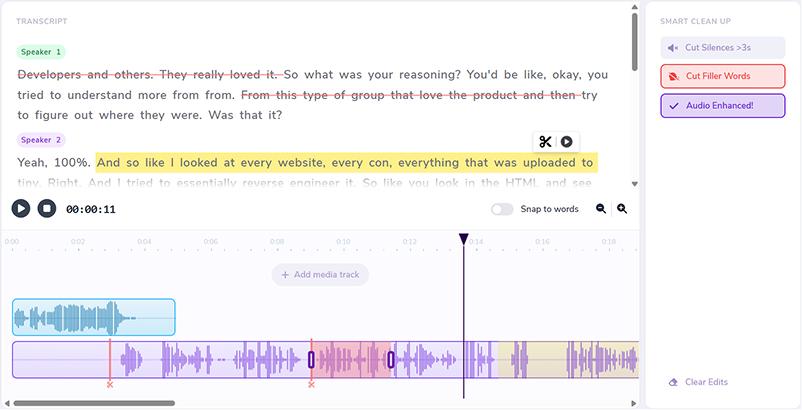
Select words in the transcript to cut, move, or refine the underlying audio.
Improve clarity and reduce noise without leaving the editor.
Remove dead air automatically so interviews and episodes stay tight.
Clean up ums, uhs, and hesitations in bulk from the transcript view.
Layer music, intros, and voiceovers on the same timeline.
Switch to waveforms whenever you need frame-accurate control.
Whether you record podcasts, voiceovers, or courses, edit voice tracks with AI transcription and enhancement in one place.
Enhance spoken clarity and remove fillers without rebuilding the episode in a desktop DAW.
Fix narration tracks with AI enhancement and text-based cuts for retakes.
Balance levels, reduce noise, and trim dialogue with voice-focused AI tools.
Let AI transcription and cleanup handle the technical work while you edit by text.
Run AI voice enhancement alongside transcript cuts and timeline trims.
Remove silences, filler words, and noisy sections from voice recordings faster.
Download polished voice audio from the same AI workspace.
Drop a podcast, voiceover, or interview file into the editor. AI transcription starts when speech is detected.
Select words or phrases to cut retakes, then refine timing on the waveform when needed.
Apply AI voice enhancement, remove silences and filler words, and layer music on extra tracks if required.
Download the polished result when your voice edit is complete. For broader AI editing workflows, see our AI audio editor on the same platform.
Practical guides on transcript editing, cleanup workflows, and spoken-audio production.
Choppy silence removal often means your threshold is too high or pauses are trimmed too short. Learn settings to tighten dead air without clipping speech.
Read article→Heavy filler removal can sound robotic when pauses vanish and words land too close. Learn when to cut ums and when to leave speech human.
Read article→Remove ums and uhs automatically from podcast audio with transcription, bulk filler detection, and a quick review pass so cuts stay natural.
Read article→It is a browser tool for editing spoken voice recordings using AI transcription, voice enhancement, and smart cleanup — not music production.
Yes. One-click enhancement helps bring speech forward and reduce noise in voice recordings.
Yes. The workflow is designed for narration, podcast dialogue, interviews, and other spoken voice content.
Yes. Select text in the transcript to cut or rearrange the underlying voice audio.
No. The AI voice editor runs entirely in your browser.
MP3, WAV, M4A, and most browser-supported audio and video formats are supported for upload.
Related text-based tools: